108 – Creating Games with Google Studio
108 – Learn how to create games using Google Studio
Use any of the example prompts in this tutorial and modify them to get your desired game.
Intro: In this tutorial, you will learn how to use Google Studio to create an HTML and JavaScript game. We will demonstrate the first game in class, and you can use the other suggested prompts at the bottom of the page for inspiration for your very own game.
By [Author] | [Date] | ~ [Read time]
Table of Contents
Overview
Use a Google account and login to aistudio.google.com and then press Build from the left menu of the main AI Studio main page. (There is another build button in AI Studio later on, so do not confuse the two.)
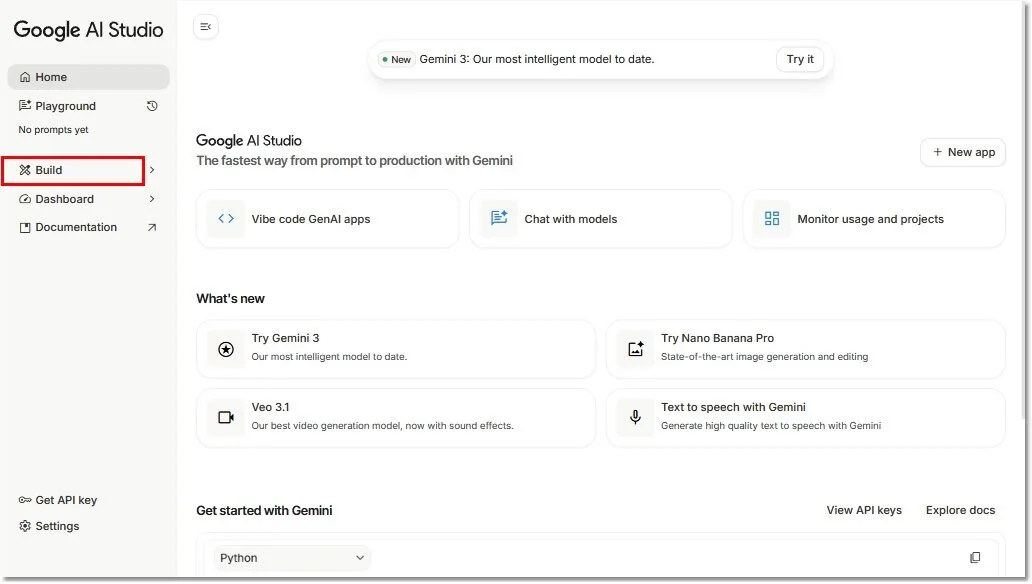
Inside the Build section of Google AI Studio
Become familiar with the sections below. They have been numbered and explained below the image.
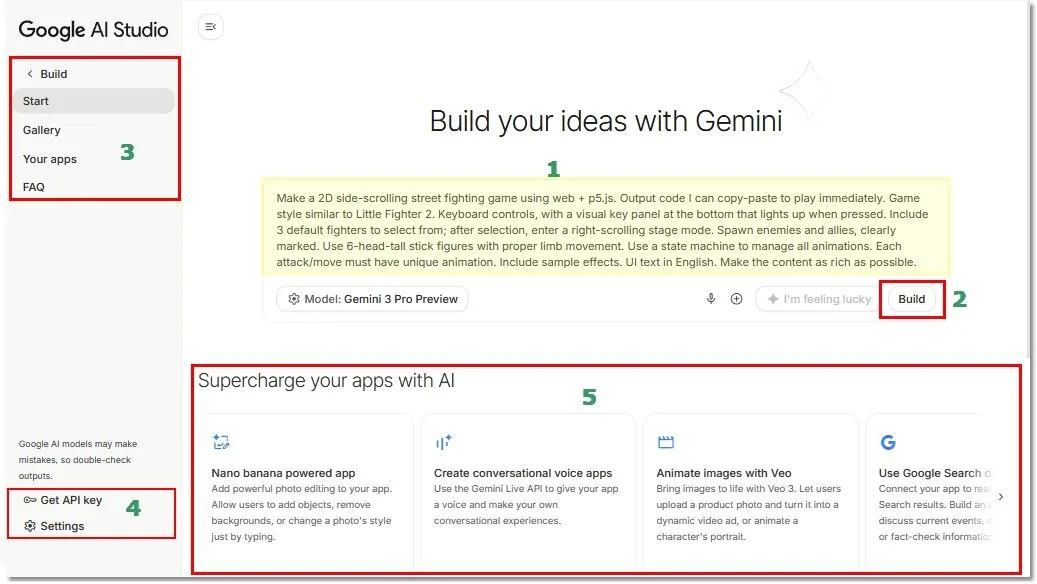
Build Starting page sections explained
1. Prompt Area : Enter your prompt in the area which I have highlighted in yellow. The more descriptive and clear you are about your idea, the better the chances of obtaining a good product from your AI
2. Build Button: Pressing the Build button will invoke the AI and start the creation of your program
3. Top Left Menu: Your previous applications and a Gallery of examples are available under this menu
4. Bottom Left Menu: Your Login and Settings, including your API Keys (Application Programming Interface) that you may need to interface to other applications
5. Supercharge: Careful with this section. If you click on these buttons, the AI will try to use the library, e.g. The Nano Banana library or Veo Animation library. Make sure that in your prompt you specify how to use the library if you select anything from this option.
Running a Build
After you enter your prompt and press the build button, you will be presented with a screen similar to the one below. We have explained the different sections using numbers in the image below.
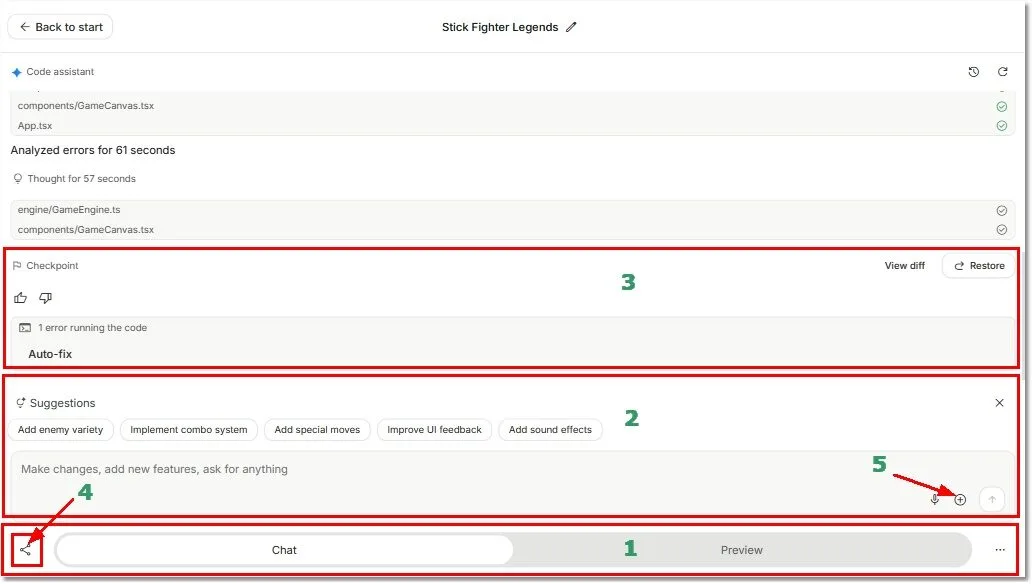
1. Chat and Preview Toggle buttons: Recommend you press the Chat button and watch the AI generate the files and run through the process. Once the process is complete, you can view your program by pressing Preview.
2. Suggestions: You can expand and improve your program by giving prompts or selecting one of the suggestions. But before you do that, see section 3 below.
3. Checkpoint and Errors: Before you get a running application, you may be asked to Auto-fix your program. Press the Auto-Fix label/button to let the AI fix the code. You can also fix your program by using the code editor, which we will see later. A checkpoint is a milestone that you can go back to by pressing Restore if you do not like what it did after the checkpoint. If you press View diff, you will see the code added between the last checkpoint and the current checkpoint. View diff is a good way to learn what new code the AI introduced.
4. You can share your game with others by giving them the URL. Publish and Share the URL.
5. Don’t forget, you can add additional resources to guide the AI
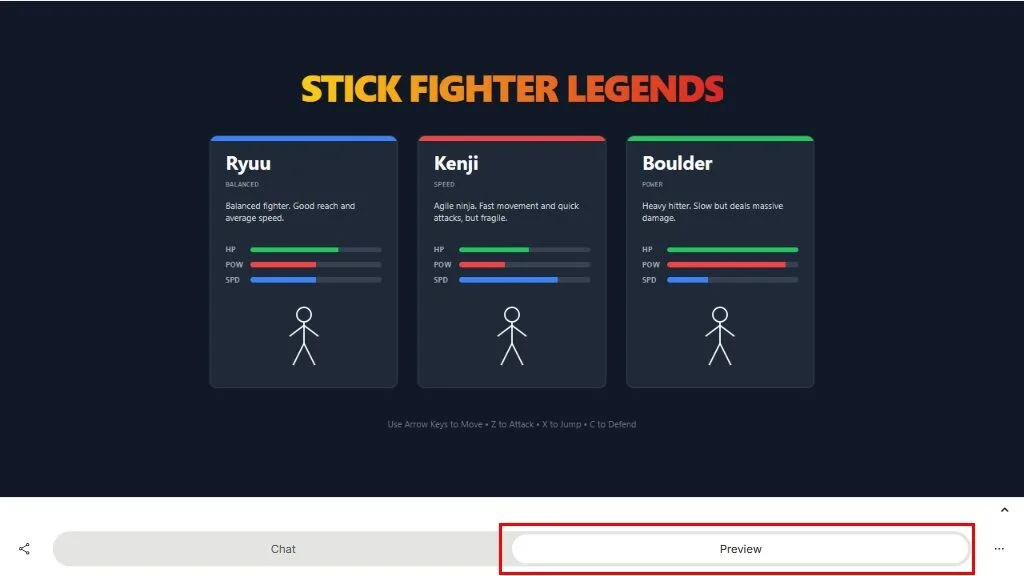
Editing code and making directed changes
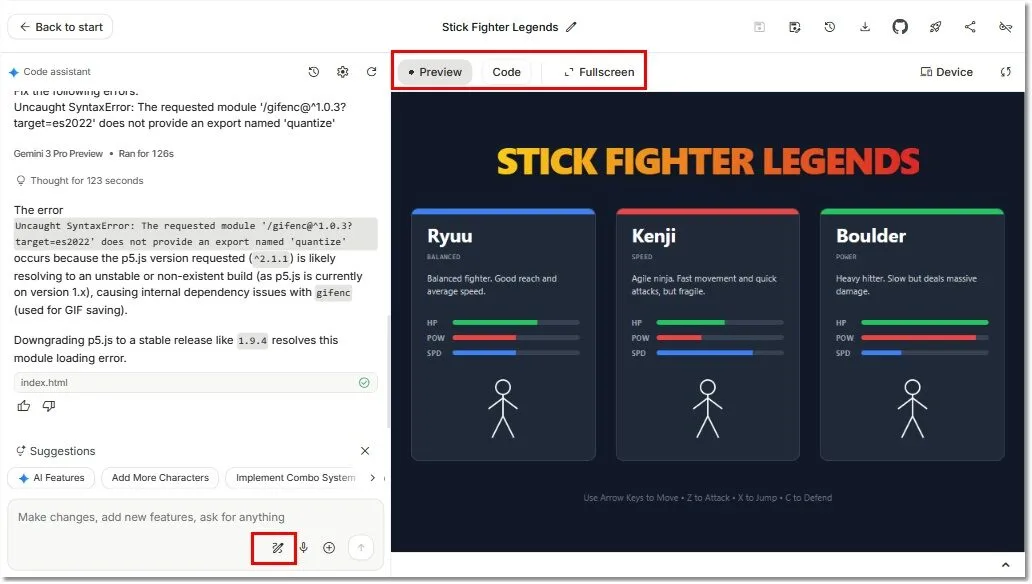
To Access the code tab
A. Return to the main google AI Studio page
B. Select your application by the name you gave to your project in the beginning
C. You should see your application with tabs at the top for Code and Preview
D. Select the Annotate button to direct the AI to focus on a certain section. Your prompts should reflect the changes you want in that section.
Additional Resources
You can access the official documents at Google AI Studio Build Mode
Here are some prompts to inspire you further. Prompts were gathered from examples found on the web.
| Name of Game | Full Prompt |
|---|---|
| Gemini 3 Fighting Game Demo | Make a 2D side-scrolling street fighting game using web + p5.js. Output code I can copy-paste to play immediately. Game style similar to Little Fighter 2. Keyboard controls, with a visual key panel at the bottom that lights up when pressed. Include 3 default fighters to select from; after selection, enter a right-scrolling stage mode. Spawn enemies and allies, clearly marked. Use 6-head-tall stick figures with proper limb movement. Use a state machine to manage all animations. Each attack/move must have unique animation. Include sample effects. UI text in English. Make the content as rich as possible. |
| Little Fighter-like Side Scroller | Make a side-scrolling fighting game like Little Fighter 2. Use stick figures with realistic animation. Make playable via keyboard, show a visual key panel when keys are pressed. Enemies and allies auto-spawn, allow stage progression. Make UI text in English. Make content as rich as possible. |
| Doodle Jump + Carrot Shooter | Create a complete, functional Doodle Jump game using HTML, CSS, and JavaScript. The game should include: A player character that can jump and move left and right; platforms to jump on, with some that break or move; continuous upward scrolling; score tracking; simple, clean graphics styled using CSS or canvas; responsive keyboard controls. Output a single HTML file ready to play and test. |
| Chess with Gemini AI | Build a browser-based chess game using HTML, CSS, and JavaScript. Include a functioning AI opponent. Make the game playable via mouse and/or keyboard. Use standard chess rules and board layout. Output complete code in a single HTML file. |
| Retro Synthwave Space Shooter | Generate a retro synthwave space shooter game for browser play. Use HTML, CSS, and JavaScript or p5.js. Make graphics in synthwave neon style, include classic arcade gameplay (moving, shooting, scoring), and make instantly playable. Output code in a single HTML file. |
| Asteroids Arcade Destroyer | Create an Asteroids-style arcade game in HTML, CSS, and JavaScript. Include asteroids, a movable ship, shooting controls, score tracking, and game-over states. Use retro arcade graphics, make instantly playable, output in a single HTML file. |
| Text-Based Adventure RPG | You are a multi-turn text adventure game bot. Start by asking the player to configure their game by choosing: A realm, a character type, a companion creature (with random suggestions for each). Parse the player’s input to configure the game, then begin the adventure in the chosen setting with the specified character and companion. Present diverse encounters, choices, and subplots. Offer choices each turn, allowing for different story outcomes and endings. Include morally ambiguous choices impacting the story. |
| DnD/Choose Your Own Adventure | I want you to act as my Dungeon Master for a solo Dungeons & Dragons 5th Edition game. Do not break character. Do not mention you are an AI. Ask me to choose a setting, character, and companion. Narrate the story, present encounters with 4 possible actions each turn. Respond as the world and NPCs, including consequences for my choices. |
| 3D Platformer (Robot Explorer) | I want to build a 2D side-scroll platformer game for browsers. The story: a small robot exploring a planet, collecting energy orbs, avoiding enemies. Art style: flat vector graphics, colorful, low-poly look. Mechanics: jump, dash, wall-jump, energy boost. Generate a complete project folder, main game loop in JavaScript/Phaser 3, asset placeholders, and deployment instructions. |
Here is the format to submit your homework:
URL of Game: Google AI Studio
What was good: The AI followed the following instructions. A,B,C…
What was not good: I asked it to do ABC but it did not until I changed the prompt to XYZ
What could be made better: If my instructions contained DEF or I could incorporate library HIJ then it would have done KLM.
Looking forward to seeing what you have made.
Go deeper
- Google AI Studio — where you can build and run small games and apps